
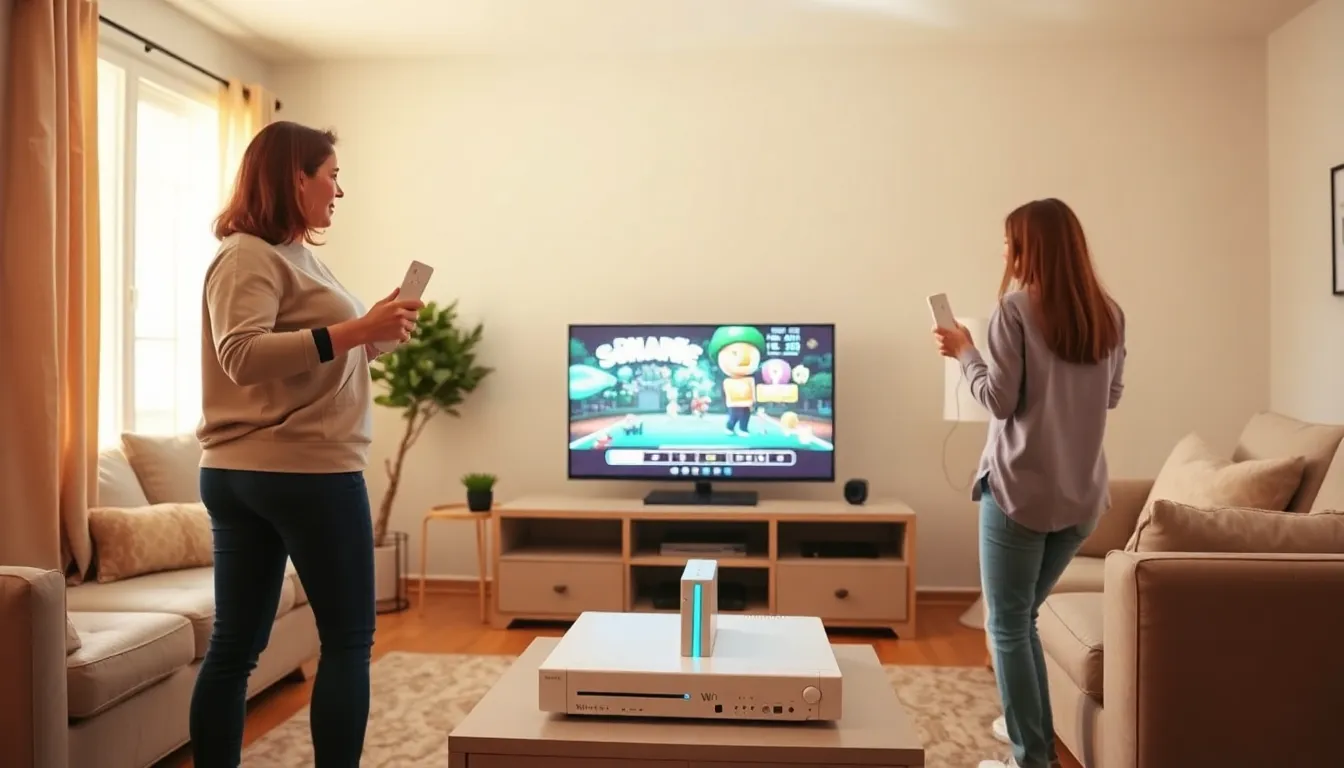
This Nintendo Wii guide covers everything from initial setup to troubleshooting common problems. The Wii changed how people play video games when Nintendo released it in 2006. Its motion-sensing controllers brought families together and made gaming accessible to everyone. Whether someone just found a Wii in storage or bought one secondhand, this guide will help them get started and make the most of this beloved console. The following sections walk through setup, menu options, game recommendations, useful tips, and fixes for frequent issues.
Table of Contents
ToggleKey Takeaways
- This Nintendo Wii guide walks you through setup in about 15 minutes, including connecting the sensor bar, AV cables, and syncing your Wii Remote.
- Must-play titles include Wii Sports, Super Mario Galaxy, Mario Kart Wii, and The Legend of Zelda: Twilight Princess—games that defined the console’s legacy.
- Use rechargeable batteries and keep the sensor bar clean to maintain optimal performance and save money over time.
- Original Wii models play GameCube discs, effectively doubling your game library with backward compatibility.
- Common issues like disc read errors and remote syncing problems can usually be fixed with simple troubleshooting steps covered in this Nintendo Wii guide.
- The Wii Shop Channel closed in 2019, but previously downloaded games and most core console features still work today.
Setting Up Your Nintendo Wii
Setting up the Nintendo Wii takes about 15 minutes. Here’s how to get the console ready for play.
First, connect the sensor bar. The sensor bar plugs into the back of the Wii console. Place it either above or below the TV screen. Most users put it on top of the television, but either position works fine. The bar detects where the Wii Remote points, so keep it centered with the screen.
Next, connect the AV cables. The Wii includes composite cables (red, white, and yellow plugs). Match each color to the corresponding input on the TV. For better picture quality, users can purchase component cables separately. These provide a cleaner image on HDTVs.
Plug in the power adapter. The AC adapter connects to the back of the console and then to a wall outlet. A small light on the front of the Wii will glow red when power flows to the system.
Insert batteries into the Wii Remote. The controller uses two AA batteries. Open the battery cover on the back of the remote and insert them according to the diagram inside.
Sync the Wii Remote to the console. Press the red sync button inside the SD card slot cover on the Wii. Then press the red sync button inside the battery compartment of the remote. The lights on the remote will blink and then settle on one light, showing which player number the controller represents.
Finally, turn on the Wii and follow the on-screen prompts. The system will ask users to set the date, time, and screen position. This Nintendo Wii guide recommends completing the initial calibration carefully since it affects gameplay accuracy.
Navigating the Wii Menu and Channels
The Wii Menu serves as the main hub for all activities. It displays a grid of channels that users select by pointing the Wii Remote at the screen.
The Disc Channel launches whatever game sits in the disc drive. Point at the channel, press A, and select “Start” to begin playing.
The Mii Channel lets users create cartoon avatars called Miis. These characters appear in many Wii games. Users can customize faces, hair, body types, and clothing. Creating Miis for family members adds personality to multiplayer sessions.
The Wii Shop Channel connected to Nintendo’s online store. Note that Nintendo shut down the Wii Shop in January 2019. Users can no longer purchase new games or content through this channel. Any previously downloaded titles remain on the console.
The Photo Channel displays images stored on SD cards. Users can add effects, create slideshows, and even make simple puzzles from their photos.
Internet Channel provides web browsing directly on the TV. This runs on a modified version of the Opera browser. It works for basic sites but struggles with modern web pages.
News and Weather Channels delivered daily updates when connected to the internet. These services have been discontinued but may still appear on the menu.
Users can rearrange channels by holding A and B together while pointing at a channel. This Nintendo Wii guide suggests organizing frequently used channels near the top of the screen for quick access. The Wii supports up to four pages of channels.
Best Games and Must-Have Titles
The Wii library includes hundreds of games. These titles represent the best the console offers.
Wii Sports came bundled with the console in most regions. Tennis, bowling, baseball, golf, and boxing introduced motion controls to millions. Bowling alone provided countless hours of family entertainment.
Super Mario Galaxy and its sequel stand among the best platformers ever made. Mario travels between planets with unique gravity mechanics. The games earned near-perfect review scores and still hold up today.
The Legend of Zelda: Twilight Princess launched alongside the Wii. It offers a lengthy adventure with motion-controlled sword combat. Skyward Sword later pushed motion controls further with one-to-one sword movement tracking.
Mario Kart Wii brought racing fun with motion steering via the included Wii Wheel accessory. Online play attracted millions of players, though Nintendo has since ended those servers.
Super Smash Bros. Brawl packed Nintendo characters into frantic fighting matches. It supports up to four players locally and includes a single-player adventure mode.
Wii Fit turned exercise into gaming. The Balance Board accessory tracked yoga poses, strength exercises, and balance games. This Nintendo Wii guide recommends it for anyone interested in light fitness routines.
New Super Mario Bros. Wii revived 2D Mario gameplay with four-player co-op. It’s chaotic, fun, and perfect for groups.
Other notable mentions include Donkey Kong Country Returns, Kirby’s Epic Yarn, Metroid Prime 3, and Xenoblade Chronicles. The Wii also plays all GameCube games, expanding the library significantly.
Tips for Getting the Most Out of Your Wii
A few tips help users maximize their Nintendo Wii experience.
Secure the wrist strap. Motion controls mean swinging arms. The strap prevents the remote from flying across the room, or into the TV. Always tighten it before playing.
Use rechargeable batteries. The Wii Remote drains batteries quickly. A rechargeable battery pack or standard rechargeable AAs saves money over time.
Keep the sensor bar clean. Dust affects tracking accuracy. Wipe it occasionally with a soft cloth.
Position matters. Sit or stand 3-10 feet from the sensor bar for best results. Direct sunlight near the TV can interfere with the infrared sensors. Close blinds or curtains if the remote acts erratically.
Expand storage with an SD card. The Wii has limited internal memory. An SD card (up to 32GB) stores downloaded games, save files, and photos. Insert the card into the slot behind the front panel cover.
Connect to Wi-Fi when possible. Even with discontinued services, some homebrew applications and community servers work. A USB Ethernet adapter provides more stable connections than wireless.
Try the Wii Remote Plus. This upgraded controller includes the Motion Plus sensor built in. Some later games require it. The sensor improves accuracy for titles like Wii Sports Resort and Skyward Sword.
GameCube compatibility. Original Wii models (not the Wii Mini) play GameCube discs. Users need GameCube controllers and memory cards. These plug into ports hidden under a flip-top cover.
Troubleshooting Common Issues
Problems happen with any console. Here are fixes for frequent Wii issues.
Wii Remote won’t sync: Remove the batteries for 30 seconds. Reinsert them and try syncing again. If that fails, reset the console by unplugging it for one minute. Then attempt syncing with the red buttons on both devices.
Disc read errors: The Wii struggles with scratched or dirty discs. Clean the disc with a soft cloth, wiping from center to edge, never in circles. For persistent errors, the laser lens inside the console may need cleaning or replacement.
Black screen on startup: Check all cable connections. Try different AV inputs on the TV. Press and hold the reset button on the console for several seconds. Some users report success after changing the video output setting in the Wii’s settings menu (accessed by holding down the reset button while powering on).
Sensor bar problems: Test if the issue lies with the bar or the remote. A camera phone can see infrared light. Point a phone camera at the sensor bar while the Wii runs. Two lights should appear at each end of the bar. No lights mean the bar or its connection has failed.
Console overheating: The Wii should stand vertically or lie flat with ventilation space around it. Don’t place it in enclosed cabinets. Compressed air clears dust from vents.
Frozen console: Hold the power button for several seconds to force a shutdown. If freezing happens often, the system memory might have corrupted data. Back up saves to an SD card and try deleting unused channels or data.
This Nintendo Wii guide covers the most common problems, but persistent hardware issues may require professional repair.